
GPT-5 for Small Businesses: Affordable Customer Support Automation
August 22, 2025
YouTube AI Editing: Why Hidden Video Changes Concern Creators
August 25, 2025
Automating Tasks with ChatGPT: Build a No-Code AI Assistant with n8n
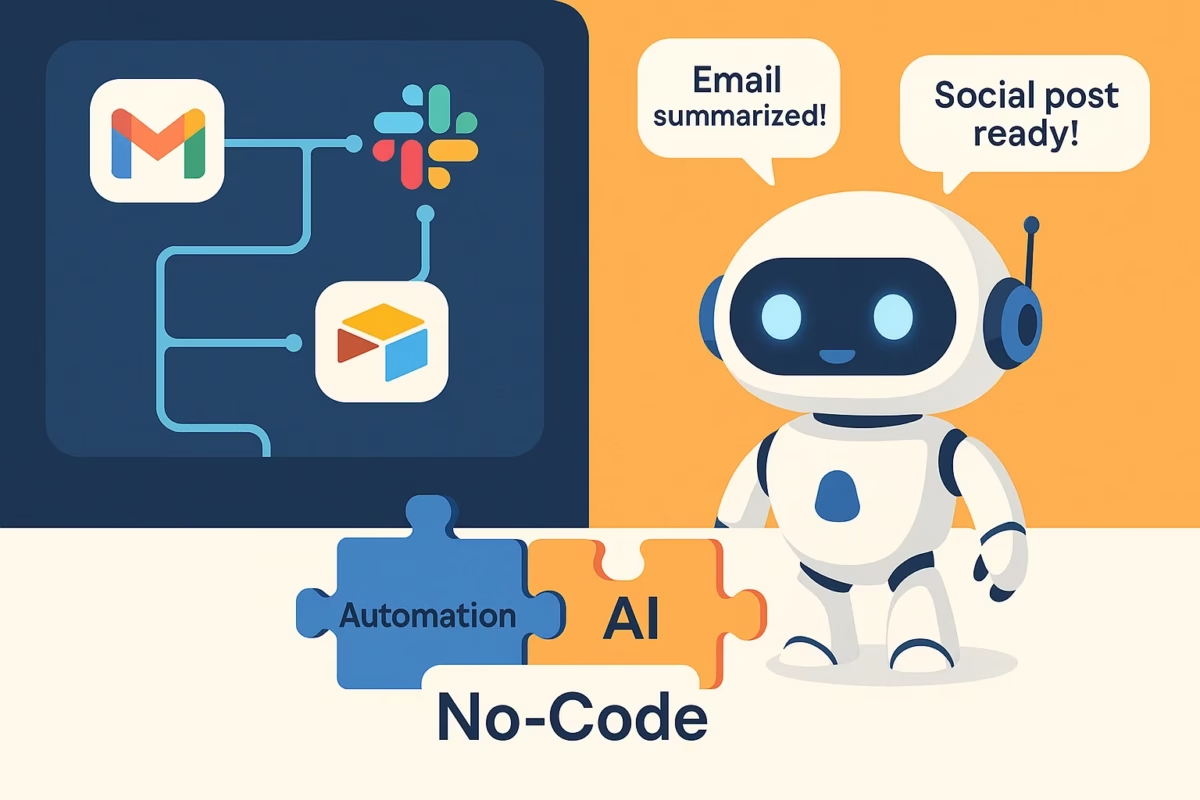
Imagine having an AI assistant that writes emails, analyzes customer feedback, summarizes meeting notes, and even creates social media posts—all without touching a single line of code. Thanks to n8n (an open-source automation tool) combined with ChatGPT, this is now possible. Together, they allow you to build a no-code AI assistant that automates repetitive tasks and scales with your business needs.
In this guide, we’ll walk through how you can start automating tasks with ChatGPT using n8n, complete with step-by-step setup, use cases, and optimization tips.
Why Use n8n + ChatGPT?
n8n: A powerful, self-hostable workflow automation platform with 300+ integrations (Slack, Gmail, Airtable, and more).
ChatGPT: OpenAI’s advanced AI model for natural language generation, data analysis, and intelligent decision-making.
Combined Power: Automate complex workflows like content creation, customer response management, and sentiment analysis—without writing code.
Practical Use Cases of Automating Tasks with ChatGPT
Auto-Reply to Customer Inquiries : Instantly generate professional, personalized replies to common questions.
Social Media Post Generation : Convert blog content into engaging LinkedIn, Twitter, or Instagram posts automatically.
Meeting Note Summarization : Summarize lengthy discussions into action points, saving hours of manual review.
Step 1: Set Up n8n
Sign Up: Create an account on n8n cloud or self-host via Docker.
New Workflow: Start with a blank workflow canvas where you’ll connect your tools.
Step 2: Integrate ChatGPT
1. Get Your OpenAI API Key
Sign up at OpenAI.
Navigate to API Keys → Create New Key.
2. Add OpenAI Node in n8n
Drag an HTTP Request node into your workflow.
Configure it with:
> URL: https://api.openai.com/v1/chat/completions
> Method: POST
> Headers:
json
{
“Authorization”: “Bearer YOUR_OPENAI_KEY”,
“Content-Type”: “application/json”
}
> Body (JSON):
{
“model”: “gpt-3.5-turbo”,
“messages”: [{ “role”: “user”, “content”: “Hello!” }]
}
Step 3: Build Your First AI Workflow
Example: Auto-Respond to Gmail Emails
1. Trigger: Add a Gmail Trigger node to watch for new emails.
2. Process Email: Use a Function node to extract the email body:
return { email_body: $json[“message”][“body”] };
3. ChatGPT Analysis: Connect the email body to ChatGPT and set:
{
“model”: “gpt-3.5-turbo”,
“messages”: [ { “role”: “user”, “content”: “Summarize this email and draft a polite response: ” + $json[“email_body”] } ]
}
4. Send Reply: Use a Gmail Send node to reply with ChatGPT’s generated response.
Advanced Use Cases
1 Social Media Manager :
. Trigger: Blog RSS feed.
. Action: ChatGPT generates posts.
. Post: Schedule via Buffer or Hootsuite.
2 Customer Support Triager :
. Trigger: New Discord/Slack message.
. Action: ChatGPT classifies urgency (e.g., refund request = high priority).
. Notify: Alert team members instantly.
3. Lead Qualification Assistant
. Trigger: Google Form submissions.
. Action: ChatGPT scores and qualifies leads.
. Save: Store qualified leads in Airtable or HubSpot.
Tips for Optimizing Your No-Code AI Assistant
!. Craft Strong Prompts: Be specific (e.g., “Reply in 3 sentences max”).
!. Add Error Handling: Use n8n’s IF node for failed API calls.
!. Ensure Security: Self-host n8n for GDPR compliance and encrypt API keys.
Automate tasks, save time, and build your own no-code AI assistant effortlessly
Conclusion
By combining n8n with ChatGPT, you can start automating tasks with ChatGPT in minutes—no coding required. From customer support to social media management, the possibilities are endless. Start small with simple workflows, then scale into advanced AI-powered automation that saves time, improves accuracy, and boosts productivity.